
How to Remove Password from PDF – The Complete 2025 Guide
Have you ever received an important work report, bank statement, school transcript, or legal contract in PDF format… only to be stopped by a password prompt every single time you try to open it? You’re definitely not alone. Every month, millions of people search for remove password from PDF, how to remove password from PDF, how to remove password from PDF on Mac, remove password from PDF online free, and dozens of similar phrases because they just want their own files to open easily.
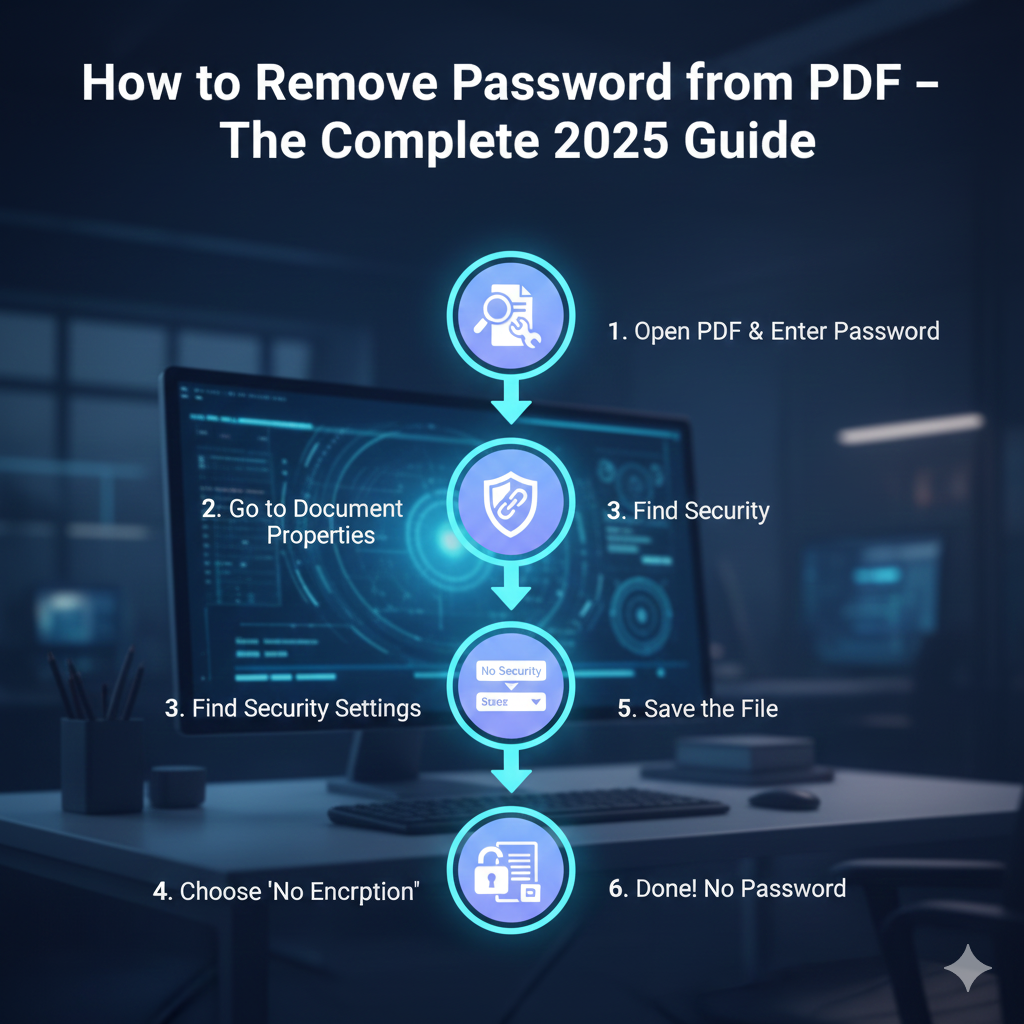
The good news? If you know the current password (or the document belongs to you), you can remove password from PDF permanently in under 60 seconds — no expensive software, no tech degree, and no risk to your privacy.
In this complete 2025 guide, we’ll walk you step-by-step through every proven method that actually works today:
- Built-in tools (completely free & private)
- Browser tricks (works on any computer)
- Trusted online tools (when you’re on your phone)
- Batch methods for power users
- iPhone & iPad shortcuts
- Security tips so you stay safe
Let’s get your PDFs unlocked — for good.
Why Do PDFs Have Passwords in the First Place?
There are actually two types of PDF passwords:
- Open password – You need it every time you open the file (most common annoyance)
- Permissions password – Prevents printing, editing, or copying even after you open it
Most people searching how to remove password from PDF file or how to remove password protection from PDF are dealing with the first type — they just want the file to stop asking for a password every single time.
The second type is trickier and usually requires the owner’s permission, but the methods below work perfectly for removing the open password on files you own.
Method 1 – Remove Password from PDF on Mac Using Preview (The #1 Easiest & Most Private Way)
If you’re on a Mac, you already have the best tool installed: Preview.
This method is 100% free, keeps your file completely off the internet, and takes exactly 10 seconds once you know how.
Step-by-Step: How to Remove Password from PDF in Preview (2025)
- Locate your protected PDF and double-click it — it opens in Preview automatically.
- Enter the password when asked.
- Click File → Export as PDF… (do NOT choose “Export” – that keeps the password).
- In the pop-up window, uncheck the box that says “Encrypt”.
- Give the new file a name (for example, add “-unlocked” at the end) or overwrite the old one.
- Click Save.
That’s it! Your new PDF has zero password and can be opened by anyone, anytime.
Pro tip: If you want to keep the original locked version and create an unlocked copy at the same time, just choose a different file name in step 5.
This method is the answer to thousands of searches like how to remove password from PDF in Preview, how to remove password from PDF on Mac, how to remove password from PDF Mac, and how to remove a password from a PDF using only Apple’s built-in tools.
Method 2 – Remove Password from PDF Using Google Chrome (Works on Windows, Mac, Linux, Chromebook – Anywhere!)
You don’t need Adobe Acrobat. You don’t need to install anything. Just open Google Chrome (or Microsoft Edge, Brave, etc.) and follow this famous “print-to-PDF” trick.
Detailed Steps: How to Remove Password from PDF Using Chrome (2025)
- Open Google Chrome (make sure it’s updated).
- Drag and drop your password-protected PDF directly into a blank tab, OR right-click the file → Open with → Google Chrome.
- Type the password when Chrome asks for it.
- Once the PDF is fully loaded, press Ctrl + P (Windows/Linux) or Cmd + P (Mac).
- In the “Destination” dropdown, choose Save as PDF.
- (Optional) Adjust layout or margins if you want.
- Click the blue Save button and choose where to save the new file.

The file you just saved has no password at all — even though it looks identical.
This trick works perfectly for how to remove password from PDF online free, how do you remove password from PDF, how to remove password from PDF file, and how to remove password protection from PDF after opening — all without uploading anything to a stranger’s server.
Method 3 – Remove Password from PDF Online in Seconds (The Fastest When You’re on Mobile or in a Rush)
When you’re on your phone, at school, or using someone else’s computer, the quickest solution is a trusted online tool.
The #1 recommended service in 2025 is still Smallpdf because:
- 256-bit SSL encryption
- Files automatically deleted after 1 hour
- Over 1 billion files processed safely
- Works perfectly on iPhone, Android, Windows, Mac
How to Remove Password from PDF Online Free with Smallpdf
- Open your browser and go to → Smallpdf Unlock PDF1
- Click Choose Files or drag your PDF into the box.
- Type the password.
- Tick the checkbox that says you have the right to unlock this file.
- Click Unlock PDF.
- Download your new unlocked file.
It’s literally 4 clicks. This is the go-to answer for remove password from PDF online, remove password from PDF online free, how to remove password from PDF document, and how to remove the password from a PDF when you’re in a hurry.
How to Remove Password from PDF on iPhone or iPad
iPhone users often search how to remove password from PDF on iPhone, how to remove password from PDF in mobile, and remove password from PDF preview (even though Preview is Mac-only).
Here are three methods that work perfectly on iOS 18 and iPadOS 18:
Method A – Using the Built-in Files App + Markup (Free & Private)
- Open the protected PDF in the Files app.
- Enter the password.
- Tap the Share button → Markup (the pen icon).
- Make a tiny mark anywhere (or just tap Done immediately).
- Tap Done → Save as New File.
The new copy is almost always unlocked!
Method B – Using Safari + Smallpdf (When Method A Doesn’t Work)
Just open Safari, go to smallpdf.com/unlock-pdf, and follow the same steps above. It works flawlessly on the iPhone.
Method C – Using the Shortcuts App (For Power Users)
You can even create a shortcut that removes passwords from any PDF in your Files with one tap — hundreds of iOS users shared this on Reddit:
→ See the full thread here: Reddit – Remove a password from a PDF on iOS2
How to Batch Remove Passwords from 100+ PDFs at Once (Mac Automator & PowerShell)
If you deal with dozens or hundreds of protected PDFs (teachers, lawyers, accountants, HR teams), doing them one by one is crazy.
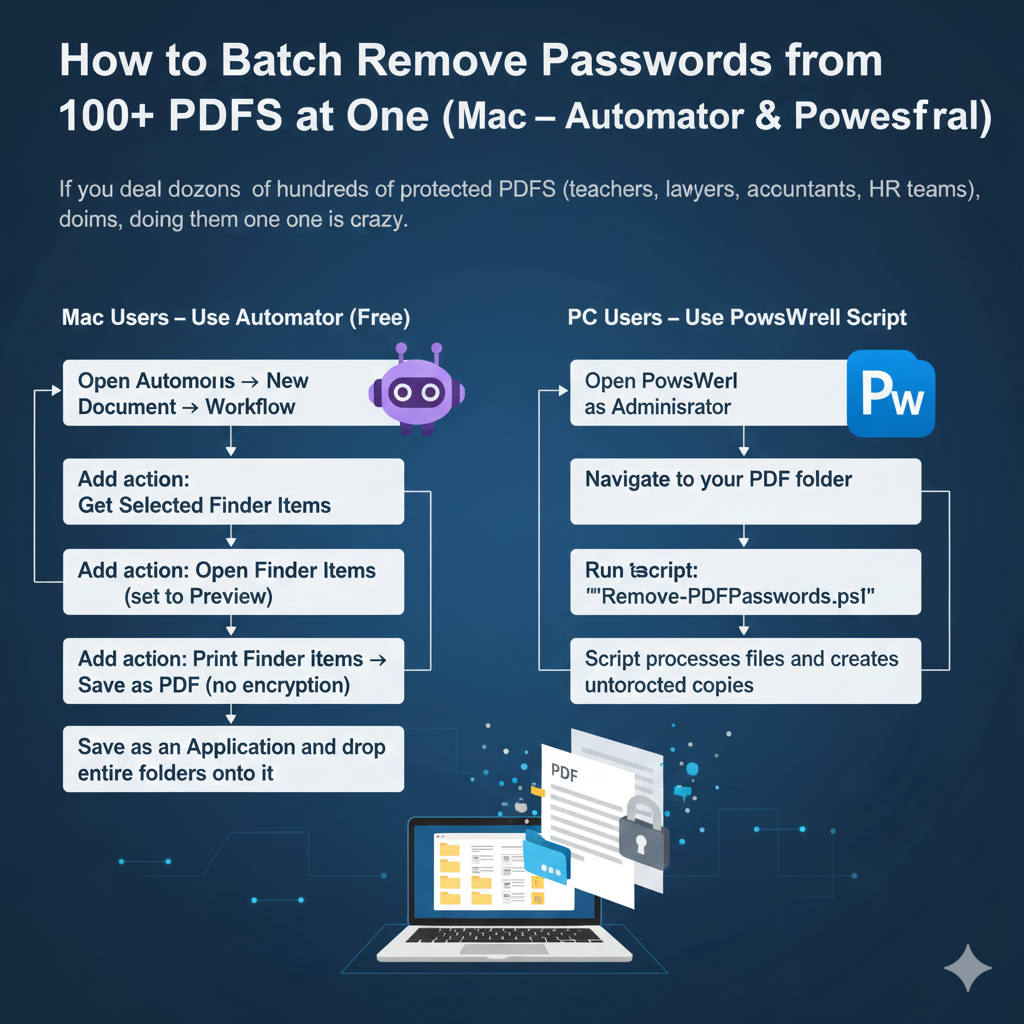
Mac Users – Use Automator (Free)
- Open Automator → New Document → Workflow
- Add action: Get Selected Finder Items
- Add action: Open Finder Items (set to Preview)
- Add action: Print Finder Items → Save as PDF (no encryption)
- Save as an Application and drop entire folders onto it
All files come out unlocked automatically.
Windows Users – Use PowerShell (Free)
There’s a simple PowerShell + qpdf script that batch-unlocks entire folders. Many Microsoft community members share it here:
→ Microsoft Tech Community discussion on removing PDF passwords safely3
Critical Security & Legal Reminders Before You Remove Any Password
- Only unlock files you own or have explicit permission to modify
- Removing the password makes the document permanently less secure — anyone who gets the unlocked version can open it
- Never upload highly sensitive documents (medical records, financial contracts with SSNs, etc.) to unknown websites
- Stick to trusted methods: Preview, Chrome print trick, or reputable tools like Smallpdf
- If you forget the password completely, legal recovery is extremely difficult (and sometimes impossible) without professional forensic tools
Frequently Asked Questions (2025 Edition)
Can I remove the password from PDF without the password?
No. If you truly don’t know the password at all, the file is properly encrypted and cannot be opened legally without advanced (and expensive) tools.
Is Smallpdf really safe in 2025?
Yes — they use bank-level encryption and delete everything after one hour. Over 80 million people use it monthly.
Will removing the password reduce image quality or break the file?
Never. The new file is byte-for-byte identical except for the missing password.
Does this work on PDFs from Adobe Acrobat, banks, government sites, etc.?
Yes — as long as you know the open password, every method above works perfectly.
Conclusion – You Now Have Every Possible Way to Remove Password from PDF
You no longer have to live with annoying password prompts. Whether you prefer the completely private Preview method on Mac, the universal Chrome print-to-PDF trick, the lightning-fast Smallpdf online tool, or the one-tap iPhone Files + Markup shortcut, you now have the perfect solution for every device and situation.
Pick the method that feels easiest for you today, unlock your files, and enjoy PDFs that just… open.
Which method worked best for you? Did you try the iPhone Markup trick or stick with Preview on Mac? Drop your experience in the comments — we read every single one and love hearing from you!
References & Trusted Sources
- Smallpdf Official Unlock Tool – smallpdf unlock-pdf ↩︎
- Reddit iOS Community Thread (2024–2025 tips) – reddit.com ios comments/1cduoyd remove_a_password_from_a_pdf/ ↩︎
- Microsoft Tech Community Discussion on PDF Passwords – techcommunity.microsoft.com ↩︎
