
How to Merge Cells in Google Sheets: Complete Guide (Desktop, Mobile & Without Losing Data)
Merging cells is one of the most common formatting tasks people search for in Google Sheets. Whether you want a clean title across the top of a report, a nicer-looking table, or simply better readability, knowing how to merge cells in Google Sheets saves time and frustration. This guide covers every method – from the classic menu way to keyboard shortcuts, mobile apps, and even how to combine text safely so you never lose important data again.

Why People Want to Know How to Merge Cells in Google Sheets
Most users fall into one of these groups:
- Students or teachers making neat project trackers or grade sheets
- Small-business owners building invoices or dashboards
- Office workers formatting reports for presentations1
- Anyone who has ever googled “how to merge cells in Google Sheets without losing data” after accidentally deleting content!
The good news? It’s incredibly easy once you know the few simple rules.
How to Merge Cells in Google Sheets (Desktop – The Classic Way)
Here’s the fastest method that works every time:
- Open your Google Sheet.
- Highlight the cells you want to combine.
- Click Format in the top menu.
- Hover over Merge cells.
- Choose one of the four options:
- Merge all – combines everything into one big cell
- Merge horizontally – joins cells in the same row
- Merge vertically – joins cells in the same column
- Unmerge – splits them back apart
That’s it! Your selected cells are now merged.
Quick Toolbar Method (Even Faster)
Look at the top toolbar – you’ll see a little icon that looks like two arrows pointing together inside a box. Click the dropdown arrow next to it and pick your merge type. Most people discover this after searching “how to merge cells in Google Sheets shortcut” because it feels like one.
Keyboard Shortcuts for Merging Cells (2025 Updated List)
Google finally added official shortcuts in late 2024:
| Action | Windows / Chrome OS | Mac |
| Merge all | Alt + O → M → A | Option + O → M → A |
| Merge horizontally | Alt + O → M → H | Option + O → M → H |
| Merge vertically | Alt + O → M → V | Option + O → M → V |
| Unmerge | Alt + O → M → U | Option + O → M → U |
Or simply select cells → click the merge icon → done.
How to Merge Cells in Google Sheets on Mobile (Android & iPhone)
Yes – you can do it on your phone in 2025!
- Open the Google Sheets app.
- Tap and drag to select the cells (or double-tap a cell and drag the blue handles).
- Tap the A icon at the top (formatting bar).
- Scroll across to the Cell tab.
- Tap Merge → choose your style.
Pro tip: If the merge option is grayed out, you probably selected cells from more than one row AND column without meaning to – pick fewer cells or use “Merge all”.
How to Merge Cells in Google Sheets on iPad
The iPad experience is almost identical to desktop because it runs the full web version in Safari or Chrome. Just open sheets.google.com, request a desktop site if needed, and use the same Format → Merge cells menu.
The Big Warning: Merging Cells Deletes Data (Here’s What Really Happens)
When you merge cells that contain text:
- Google Sheets keeps only the data in the top-left cell
- Everything else in the selected range is deleted forever

That’s why thousands of people search “how to merge cells in Google Sheets without losing data” every month. The good news? There are three safe alternatives.
Safe Way #1: Use CENTER ACROSS SELECTION (Looks Merged – No Data Loss)
This is the trick professionals use instead of true merging:
- Select the cells you want to “merge” visually.
- Press Ctrl + 1 (or Cmd + 1 on Mac) to open Format cells.
- Go to the Alignment tab.
- Under Horizontal → choose Center across selection.
- Click OK.
Your text now stretches beautifully across the cells – and you can still sort, filter, and use formulas normally.
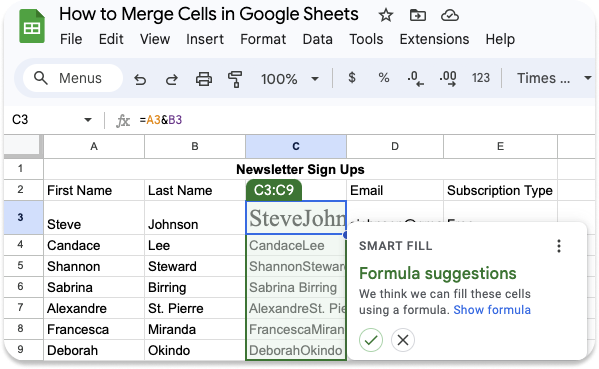
Safe Way #2: Concatenate or TEXTJOIN (Best for Keeping All Data)
If you truly need one cell but want to keep everything:
Use the TEXTJOIN function (recommended in 2025):
=TEXTJOIN(” “, TRUE, A1:C1)
Or the older CONCATENATE:
=A1 & ” ” & B1 & ” ” & C1
Many people search “how to merge two cells in Google Sheets” or “how to merge text from two cells in Google Sheets” – this is the correct answer when data matters.
Real-Life Example
| A | B | C |
| Monthly | Sales | Report – Q4 2025 |
Instead of merging and losing “Report – Q4 2025”, put this in A1:
=TEXTJOIN(” “,TRUE,A1:C1)
Result: Monthly Sales Report – Q4 2025 in one cell – nothing lost!
Safe Way #3: Wrap Text + Center Alignment (Perfect for Headers)
- Type your long header in the first cell.
- Select the whole row or range.
- Click Format → Wrapping → Wrap.
- Click the Center alignment icon.
Looks almost identical to merged cells but keeps full functionality.
How to Merge Cells in Google Sheets and Keep All Data – Quick Comparison
| Method | Keeps All Data? | Can Sort/Filter? | Best For |
| True Merge | No | No | Pure presentation |
| Center Across Selection | Yes | Yes | Most dashboards |
| TEXTJOIN / CONCATENATE | Yes | Yes | Combining actual values |
| Wrap + Center | Yes | Yes | Long headers |
Special Cases People Ask About
How to merge cells vertically in Google Sheets
→ Select the column cells → Format → Merge cells → Merge vertically.
How to merge and center cells in Google Sheets
→ Merge first, then click the Center icon (or use Center Across Selection).
How to quickly merge cells in Google Sheets
→ Use the toolbar icon or Alt + O, M, A shortcut.
How to merge cells in a table in Google Sheets
→ Same steps – but remember tables (Insert → Table) lose sorting ability if you truly merge cells inside them2.
How to Unmerge Cells (When You Change Your Mind)
- Select the merged cell.
- Click Format → Merge cells → Unmerge OR click the merge icon → Unmerge.
Only the original top-left data returns – everything else stays gone (another reason to avoid true merging when possible).
Frequently Asked Questions
How do I merge cells in Google Sheets without losing data?
Use “Center across selection” (Format → Align → Center across selection) or the TEXTJOIN formula instead of true merging. These keep all your data safe.
What is the keyboard shortcut to merge cells in Google Sheets?
Windows: Alt + O → M → A (for Merge all) Mac: Option + O → M → A You can also use the merge icon in the toolbar for one-click access3.
Can you merge cells in Google Sheets on mobile (Android/iPhone)?
Yes! Select the cells → tap the “A” formatting icon → Cell tab → Merge. Works on both Android and iPhone in 2025.
Why is the merge option greyed out in Google Sheets app?
It happens when you select non-adjacent cells or cells across frozen rows/columns. Select a simple continuous rectangle to fix it.
How to merge cells vertically in Google Sheets?
Highlight the cells in one column → Format → Merge cells → Merge vertically (or use the toolbar dropdown).
Conclusion
Learning how to merge cells in Google Sheets takes less than 60 seconds, but choosing the right method can save hours of rework. For beautiful, professional-looking sheets that still function perfectly, use Center Across Selection or TEXTJOIN 95% of the time. Save true merging only for final presentation sheets that will never be sorted or filtered.
Which method are you going to try first – the visual Center Across Selection trick, or TEXTJOIN to safely combine text? Let me know in the comments!
References & Further Reading
- Reddit r/googlesheets discussion on merging limitations →reddit.com/r/googlesheets_there_a_way_to_merge_cells ↩︎
- LiveFlow – “How to Merge Cells in Google Sheets (Complete Guide)” → liveflow.com how-to-merge-cells-in-google-sheets ↩︎
- Unito – “Merge Cells in Google Sheets: 4 Ways to Combine Cells” → unito.io blog ↩︎
