

How To Transfer Photos From Iphone To Computer: Easy Guide for 2025
Many iPhone users want to know how to transfer photos from the iPhone to the computer. This helps back up pics, free space, or edit on a big screen. You can use a cable, cloud, or apps. No need for hard steps. Just follow simple ways. This guide shows methods for Windows and Mac. It keeps your photos safe with no loss. In 2025, new iOS makes it quick. Pick what fits you. Whether you have lots of family shots or trip pics, move them easily. This stops the phone from getting full. Many face this with big libraries. Now you can fix it.Photos pile up on my iPhone from daily snaps. You need room for more. How To Transfer Photos From Iphone To Computer saves memories on PC. Use built-in tools or free apps. This works for Windows users too. No Mac needed. Steps are clear for all. Back up to avoid loss if the phone breaks. Cloud adds extra safety. Or use a wire for fast movement. Pick based on your setup.People switch phones often. Transfer pics first. This keeps everything in one spot. For Windows, apps like Photos help. On Mac, AirDrop is wireless. No cable mess. The guide covers it all. You get full quality pics. No shrink or blur.Stats show iPhone users take thousands of pics a year. Over half worry about space. Transfer cuts this. It is key for travelers with many shots. Or parents with kid photos. Easy ways make it no stress.
Why Transfer Photos to Computer
Move pics to PC for backup. This guards against phone loss or crash. The computer has more room. Editing is easy on a big screen. Share with family too. How To Transfer Photos From Iphone To Computer frees iPhone space. The phone runs faster with less battery. Many use this for work pics or art. Keep the library neat.For Windows users, it links Apple to the PC world. No need to buy new gear. Just a cable or internet. Safe from data gone. Cloud adds anywhere access. But wire is quick for big files. No wait on slow web.Mac users have built-in sync. But all can use the same steps. This helps if you have both. Transfer keeps quality high. No low-res copies. Pics stay sharp.
Use USB Cable for Transfer
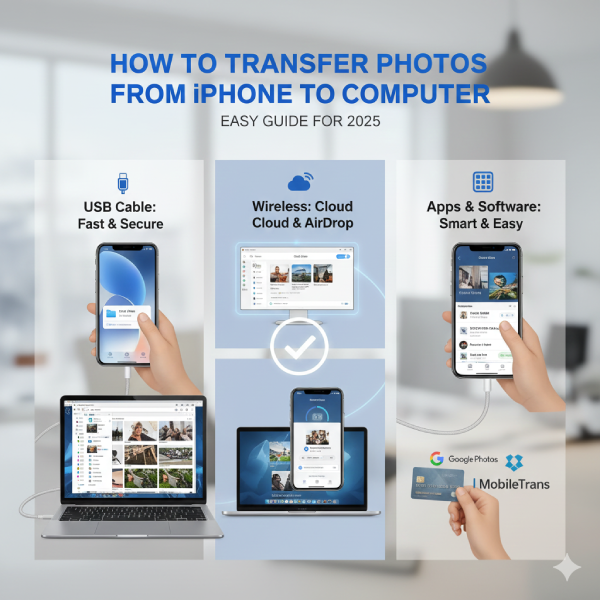
Plug the iPhone into the computer with a Lightning cable1. Unlock the phone and trust the PC if asked. On Windows, open the Photos app. Click import from device. Pick pics you want. Hit import to save. This moves fast. No internet needed. Good for lots of pics.Or use File Explorer on Windows. Find an iPhone as a drive. Go to the DCIM folder. Drag pics to your folder. Copy to keep on the phone. Or cut to move. Safely eject after. This is free and simple. No software download.On Mac, open the Photos app. Pick an iPhone from the side. Select pics and import. Same as Windows but built-in. Keeps albums too. No mess up order.Cable way is safe. No hack risk like the web. But you need a cord. In 2025, USB-C fits new phones. Old ones use an adapter.
Wireless Ways to Move Photos
Use iCloud for no wire. Turn on iCloud Photos on iPhone. Log to iCloud.com on PC. Pick pics and download. This syncs auto. Good for anytime access. But I need the internet. Free 5GB. Pay for more.AirDrop for Mac. Turn on both devices. Pick pics on iPhone. Share to Mac. It sends fast over Wi-Fi. No clouds. Close range needed. Safe and quick.Bluetooth works but slow. Pair devices. Share pics one by one. Not for big batches. Good for a few shots.Email pics if small. Share your mail. Download on PC. Limit 25MB. Use for quick send.These ways fit busy folks. No hunt for cable. But check the battery. Internet use drains fast2.
Apps and Tools for Transfer
Try MobileTrans software. Download on PC. Pick phone transfer. Connect iPhone. Choose pics and export. Fast for thousands. Keeps quality. Works on Windows and Mac. No iTunes needed.Google Photos app. Upload from iPhone. Download on PC. Free unlimited for compressed. Or pay for full size.OneDrive or Dropbox too. Sync folders. Auto move. Good for cross-platform.These tools add safety. Encrypt data. No peek from others. Pick trusted ones.
Tips to Avoid Problems
Back up first. Use iCloud or iTunes. This guards if something goes wrong.Check space on PC. Pics take room. Clean old files.Update iOS and PC software. Fixes bugs. Makes transfer smooth.Use the right cable. Fake ones slow or fail.If stuck, restart both. Or try different port.These keep it easy. No frustration.Link to iPhone 16 charger type for new cords.See cd iphone apple secret tech mix old new for old phone tips3.
FAQs
Can I transfer photos from iPhone to computer without cable?
Yes, use iCloud or AirDrop. Turn on sync on the phone. Get from the web on PC. Or share wireless. This needs Wi-Fi. Good for no-cord days. Keep pics safe.
What if you transfer photos from an iPhone to a computer on Windows?
Use Photos app or Explorer. Plug in and import. Free and built-in. Works on Windows 10 or 11. No extra download.
Does transferring photos from iPhone to computer lose quality?
No, if used the right way. Cable or cloud keeps full size. No shrink. Check settings for high quality.
How To Transfer Photos From Iphone To Computer without iCloud?
Use cable or apps like Google Photos. Plug and drag. Or upload to another cloud. This skips Apple login.
Is there a fast way to transfer photos from an iPhone to a computer for a big library?
Use software like MobileTrans. One click moves all. Faster than manual. Good for thousands of pics.
Conclusion
In sum, How To Transfer Photos From Iphone To Computer is simple with these ways. Use cable for quick, cloud for wireless. Back up safe and free space. This fits all users in 2025. Try one now. What method will you pick?
References
- Microsoft Community Discussion on iPhone to Windows PC Transfer – User talks on methods. Helps those with big libraries seeking cross-platform help. ↩︎
- Intel Tech Tips on Transfer Photos from iPhone to PC – Focus on Windows with safety. Fits iPhone owners with PC for storage management. ↩︎
- MobileTrans Guide to Get Photos Off iPhone – Steps for wired and wireless. Good for non-tech users who want easy backup on Windows or Mac. ↩︎
